Price per unit
If you sell items by weight, volume, length, or area, you can add unit pricing so customers see a comparable price per unit (for example, £/kg or £/100ml) on relevant products.
Because our themes are built on Shopify’s Online Store 2.0 framework, unit prices will display automatically on your product pages, collection pages, cart, checkout, and order confirmation emails once configured in your admin.
Set up price per unit
To display the price per unit for your products, follow these steps within your Shopify admin:
- In your Shopify admin, go to Products.
- Click the product you want to edit.
- Optional: If your product has variants, scroll to the Variants section and click the specific variant.
-
In the Pricing section, click Unit price
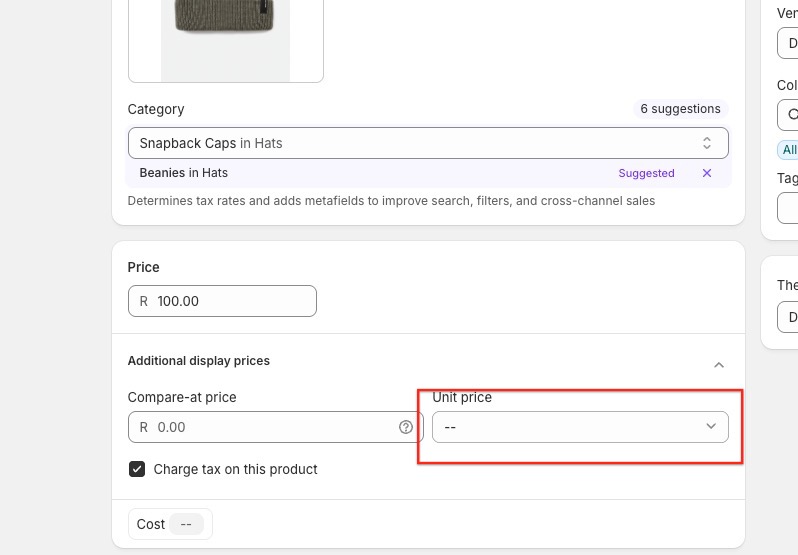
- In Total amount, enter the product's total measurement and choose the unit (e.g., 500).
- Choose the Unit of measurement (e.g., g, ml, kg).
- Optional: In Base measure, set the unit you want to display pricing by (for example, you can set the base measure to 1 kg even if the total amount is 200 g).
- Click Done and then Save.
Important notes
- Automatic Recalculation: The unit price updates automatically if you change the product's main Price. Shopify recalculates it using your "Total amount" and "Base measure."
- Unit Systems: The units you can choose (Metric or Imperial) are based on your store's Unit system found in Settings > General. You would need to change this default to access a different system.
- Global Consistency: Unit pricing displays the same unit type across all markets; you cannot currently show different unit types (e.g., grams in one country and ounces in another) per market.
- Bulk Updates: If you have many products to change, you can use the Bulk Editor or a Product CSV to update unit pricing values quickly on a desktop.
For more detailed information regarding Shopify's unit pricing logic, please refer to the official Shopify Help Center.