How to set up a Cross sell section with metafields
The Cross sells block can be added to the product Section. By using metafields you can promote up to three further products that are relevant to each of your individual products. You can follow our handy guide to set up this block.
Step 1: Define a Cross Sell metafield
You can create a dynamic Cross Sell block by adding metafields to your products.
-
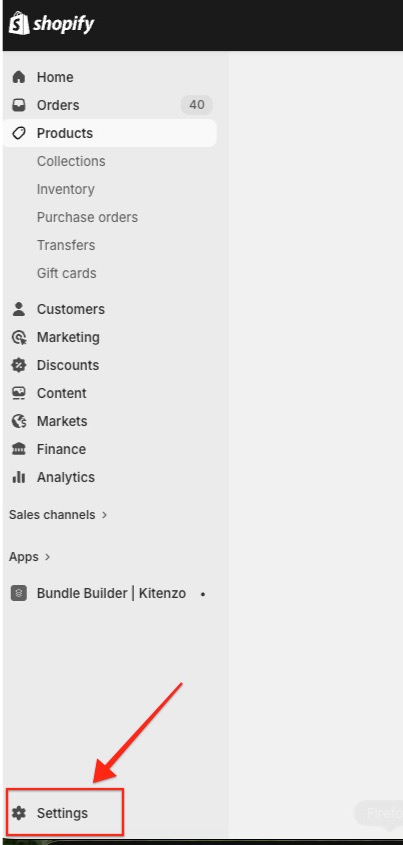
Within your Shopify admin, go to Settings.
-
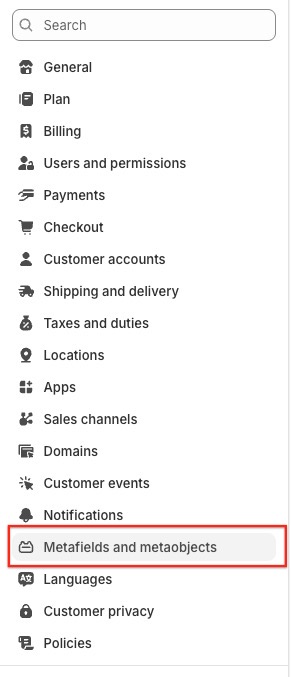
Go to Metafields and metaobjects.
-
Select Products and click Add definition.

- Provide a name of cross_sell.
- From the content type select One and Type Product
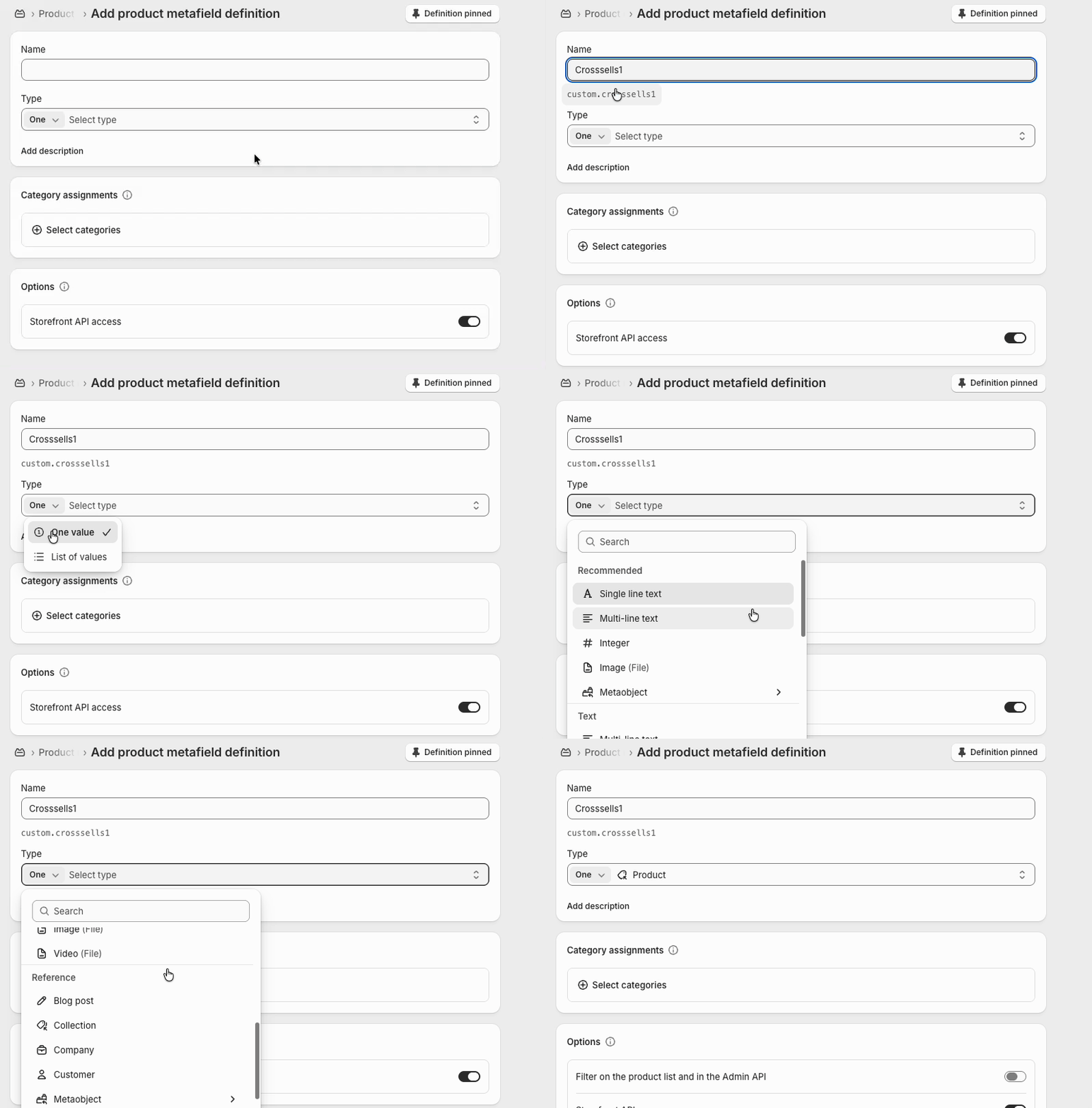
- Save your changes
Step 2: Assign metafields to your products
You can now assign your metafields to your products.
-
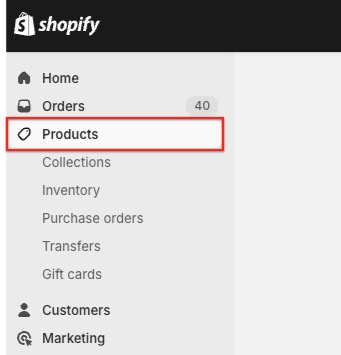
Within your Shopify Admin, go to Products.
- Select the relevant product.
- Scroll down to the metafield option and select the metafield you defined above.
-
From here, you can select the product that you want to be displayed in the cross sell section.
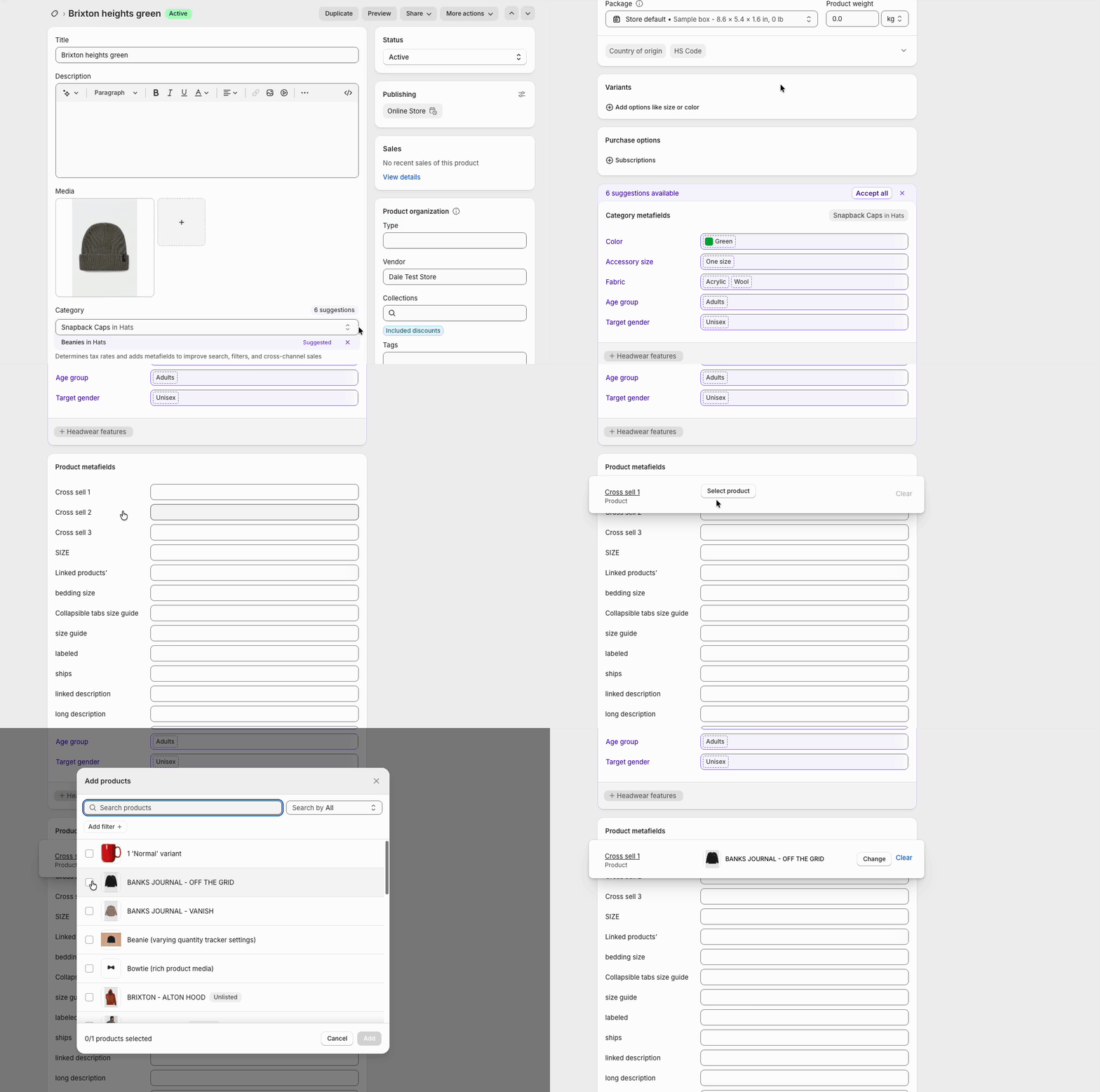
- Save your changes
Step 3: Set up Cross Sells on your store
Next, you can add the Cross Sell block on your product page.
- Within the theme editor, navigate to your product page.
- Click on the Product section
-
Add a Cross sells block.
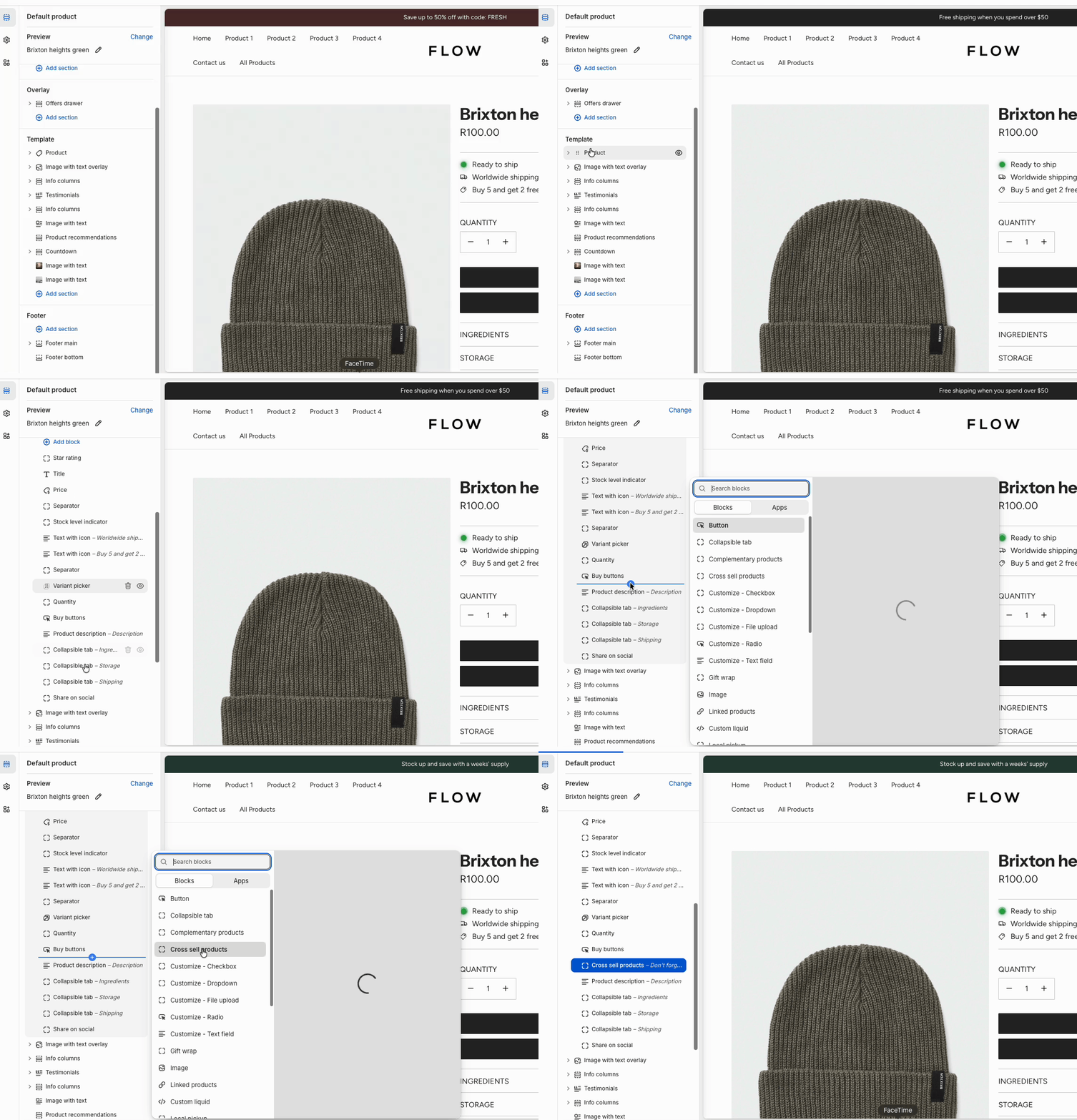
-
Connect your metafield created in the Cross Sells settings by clicking the discs icon


-
Ensure you select the Template Product option.
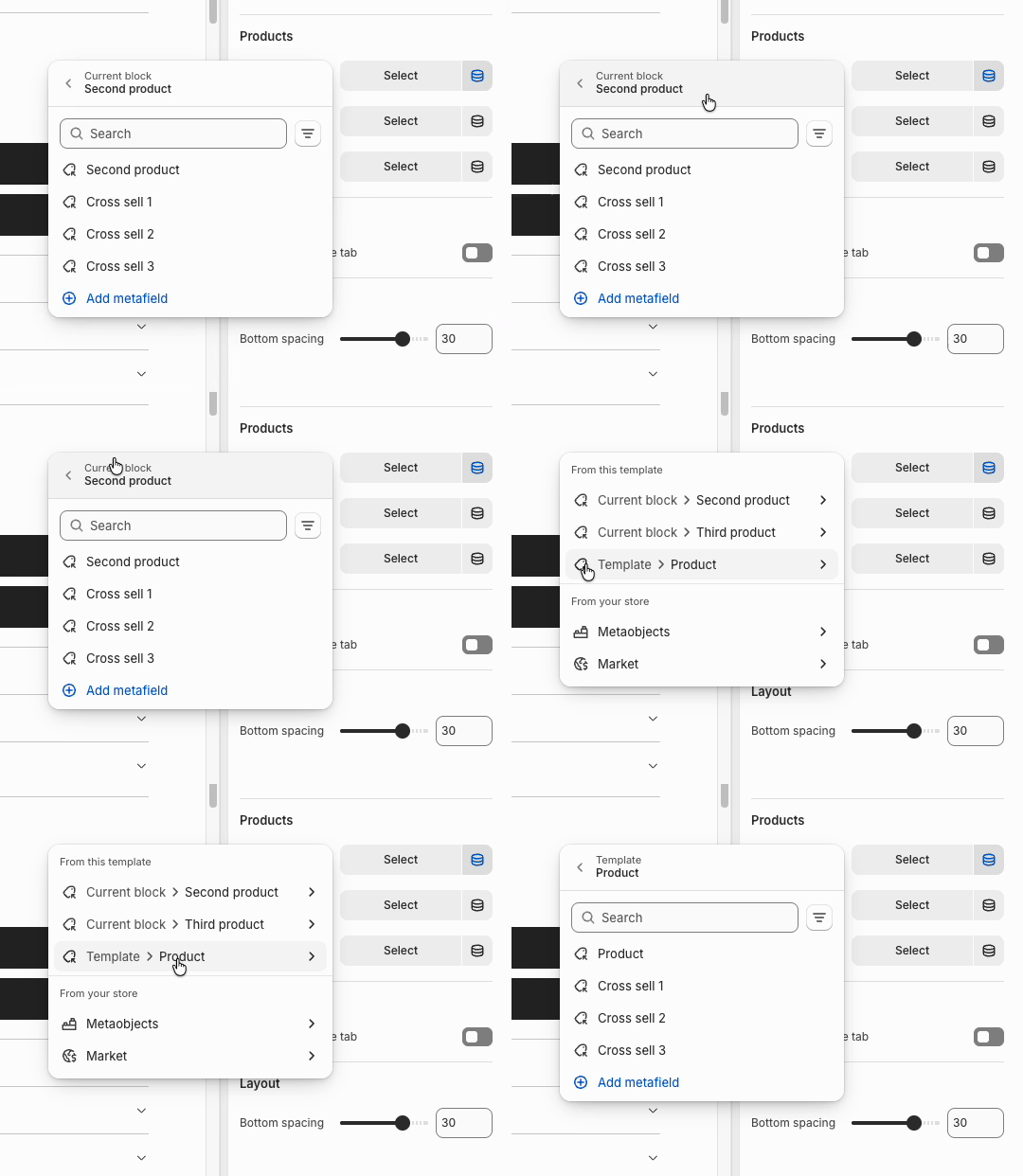
-
Select you cross sell metafield created.
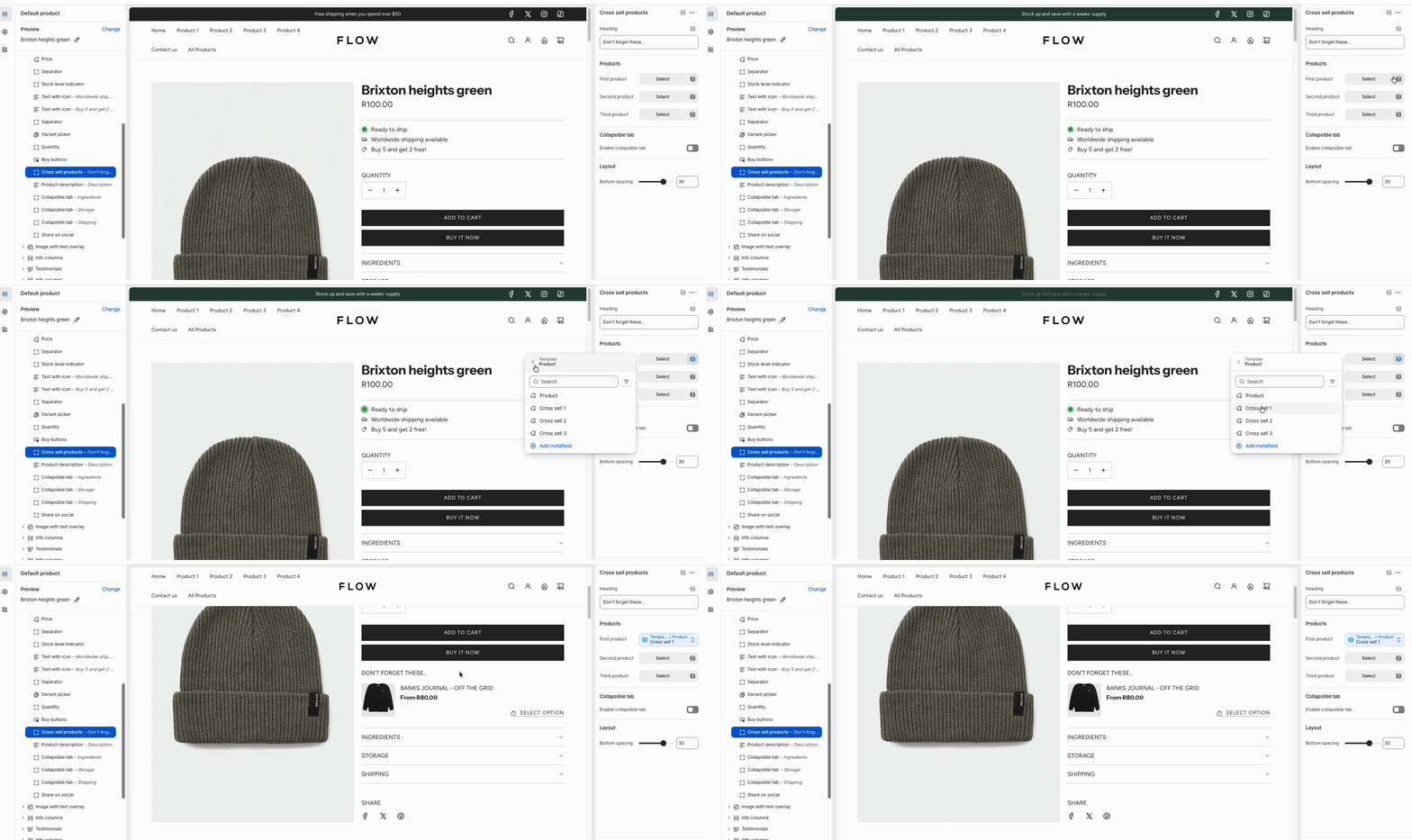
- Save your changes and you should see your cross sell products if you are previewing a product that has cross sell products assigned.