How to enable the Stock Level Indicator
The stock level indicator is a great way to communicate urgency to your customers by highlighting when items are running low. This guide will walk you through the process of enabling and configuring this feature on your product pages.
Steps to Enable the Stock Level Indicator
To add the indicator to your storefront, you will need to access the Theme Editor:
- From your Shopify admin, go to Online Store > Themes.
- Click Customize next to your active Eight theme.
-
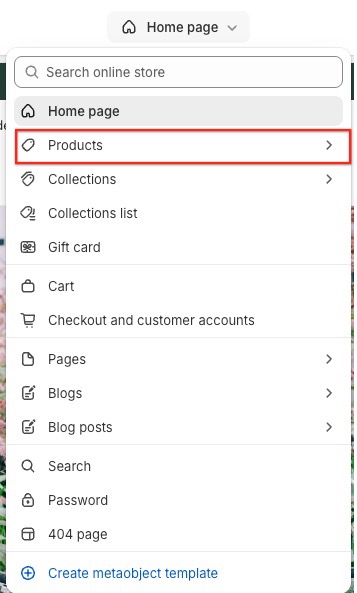
Navigate to a Product Page using the top-bar template picker.
-
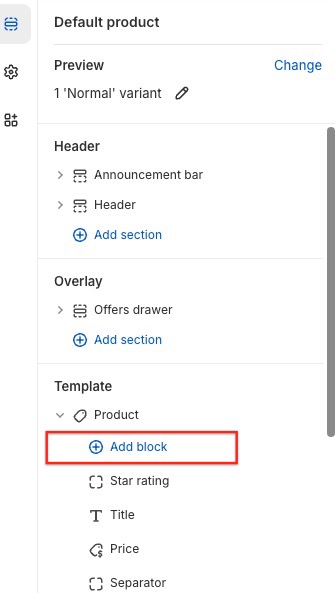
In the left-hand sidebar, within the Product section, click Add Block.
-
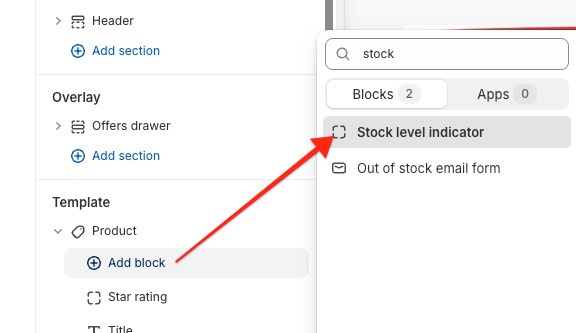
Select Stock level indicator from the list of available blocks.
-
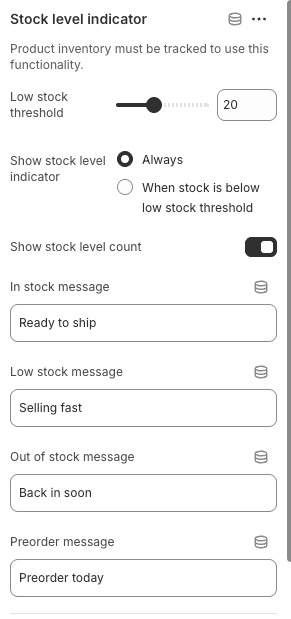
Once added, you can click on the block to access its settings. Here, you can set your Low stock threshold (e.g., 5) and customize the display settings to suit your brand.
Important: Enable Inventory Tracking
For the Stock level indicator to display correctly, your products must have inventory tracking enabled in Shopify. If a product's inventory is not being tracked, the theme has no data to display.
To enable tracking:
-
Go to your Shopify admin > Products.
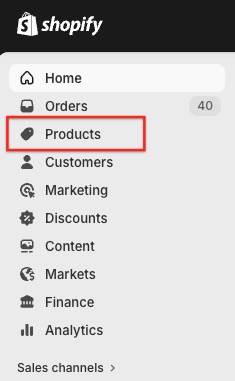
- Click the product you want to track.
- If the product has variants, click the variant you want to track.
-
In the Inventory section, turn on tracking (activate Track quantity).
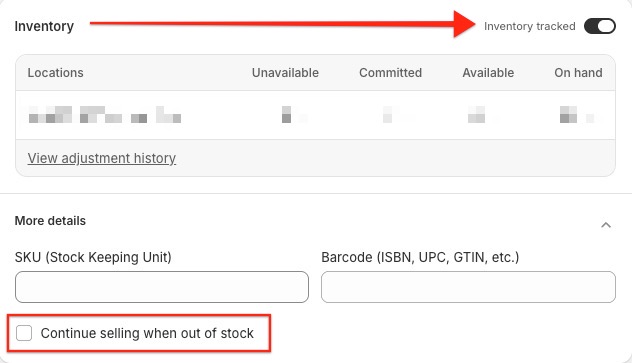
- Enter your Available quantity.
- Click Save.
Troubleshooting & Tips
- Continue selling when out of stock: When this option is enabled for a product, the Stock level indicator will not display. This is because there is no "actual" stock limit to track, as the product is essentially set to infinite availability.
- Threshold settings: The indicator will only appear once the stock falls below the threshold you defined in the Theme Editor. If your inventory is currently above that number, the block will remain hidden until the stock levels drop.
- Placement: You can click and drag the Stock level indicator block within the Product section to move it above or below other elements like the price or the 'Add to cart' button.