How to set up the Nutrition & Ingredients section
The Nutrition & ingredients section shows a product's dietary tags, ingredient list, and key benefits on your storefront. It pulls this content from metafields on the product, so before it will show anything you need to set those metafields up.
Before you start
You'll need admin access to Settings > Custom data. This guide assumes you're comfortable creating metafields and metaobjects — if you're new to these, read Shopify's metaobjects guide first.
Step 1: Create the Ingredient and Benefit metaobjects
-
Go to your Shopify Admin > Content > Metaobjects and select Add definition.
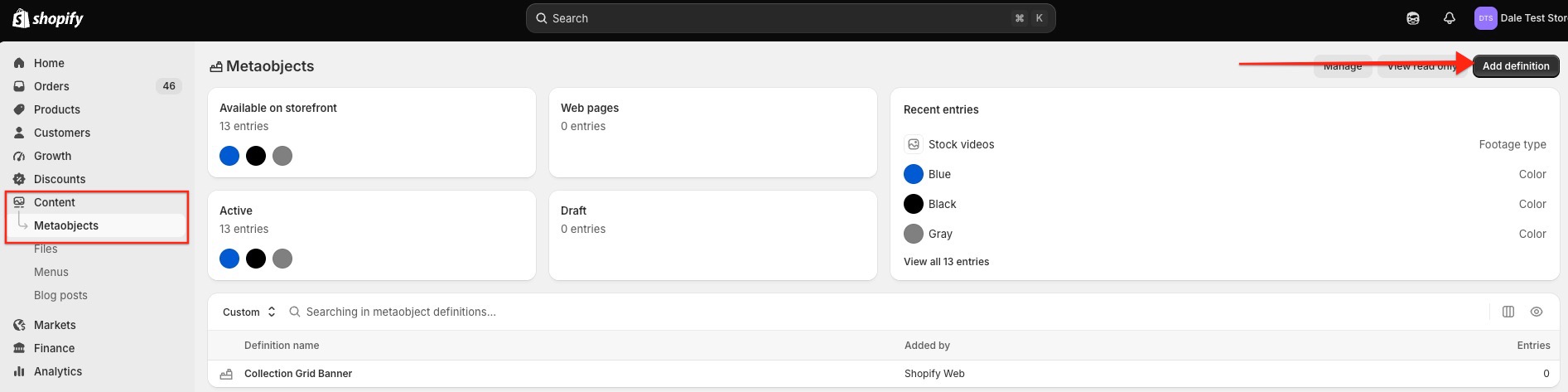
- Name it Ingredient and add three fields: Name (single line text), Benefit (single or multi-line text), and Image (file).
- Select Add definition again and repeat for a Benefit metaobject, with fields Title (single line text), Text (multi-line text), and either Icon or Image.

Step 2: Add the product metafields
Go to Settings > Metafields and metaobjects > Products > Add definition and create four metafields:
- Ingredients — type List of Metaobjects, referencing your Ingredient metaobject
- Benefits — type List of Metaobjects, referencing your Benefit metaobject
- Dietary — type List of single line text, for chips like "Vegan" or "Gluten-free"
- Ingredients full — type Multi-line text or Rich text, for the full ingredients list
When you type a name like "Ingredients," Shopify suggests the matching key automatically (custom.ingredients ) — use that suggestion so the section can find it.
Step 3: Add the data to a product
- Open a product and scroll to the metafields section at the bottom of the page.
- Add your dietary tags as free text.
- Add one or more Ingredient entries, and one or more Benefit entries — you can create new metaobject entries inline as you go.
- Optionally paste your full ingredients list — this only appears if you fill it in, behind a "View full ingredients list" toggle.
Step 4: Add the section
In the theme editor, add the Nutrition & ingredients section from the section picker. It's available on the home page, product pages, standard pages, blog posts, and collection pages.
- On a product page, leave Source product empty — the section automatically uses the product being viewed.
- Anywhere else, set Source product to the product whose ingredients, benefits, and dietary info you want to display.
Nothing showing on your storefront? If the section is on a non-product page and Source product is empty, it won't display. In the theme editor you'll see a placeholder message reminding you to add data — that message is only visible while editing, never to your customers.
Section settings
| Source product | Which product's metafields to pull from, when not on a product page |
| Show ingredients / Show dietary / Show benefits | Toggle each group on or off — a group only shows if its toggle is on and it has data |
| Ingredients heading / Benefits heading | Editable headings above each grid |
| Full list label | Text on the "view full ingredients" toggle |
| Padding, Color scheme | Standard layout and theme color controls |